In this article, we will show you how to send customized customer engagement messages in WhatsApp directly made from Excel Sheets.
Install In Just A Few Clicks
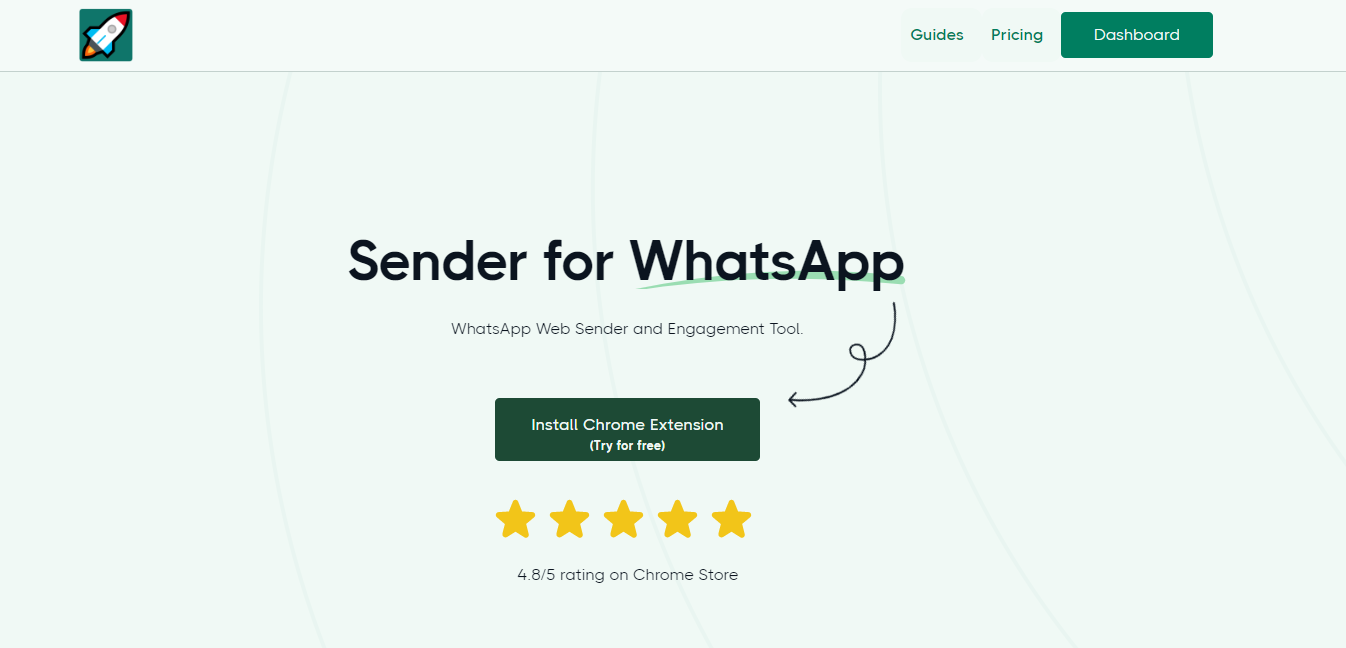
To send WhatsApp messages directly from Excel Sheets, rocketsend.io Chrome extension should be installed on your browser.
To do this, just go to Rocketsend.io WA Sender and add the extension to your Chrome browser
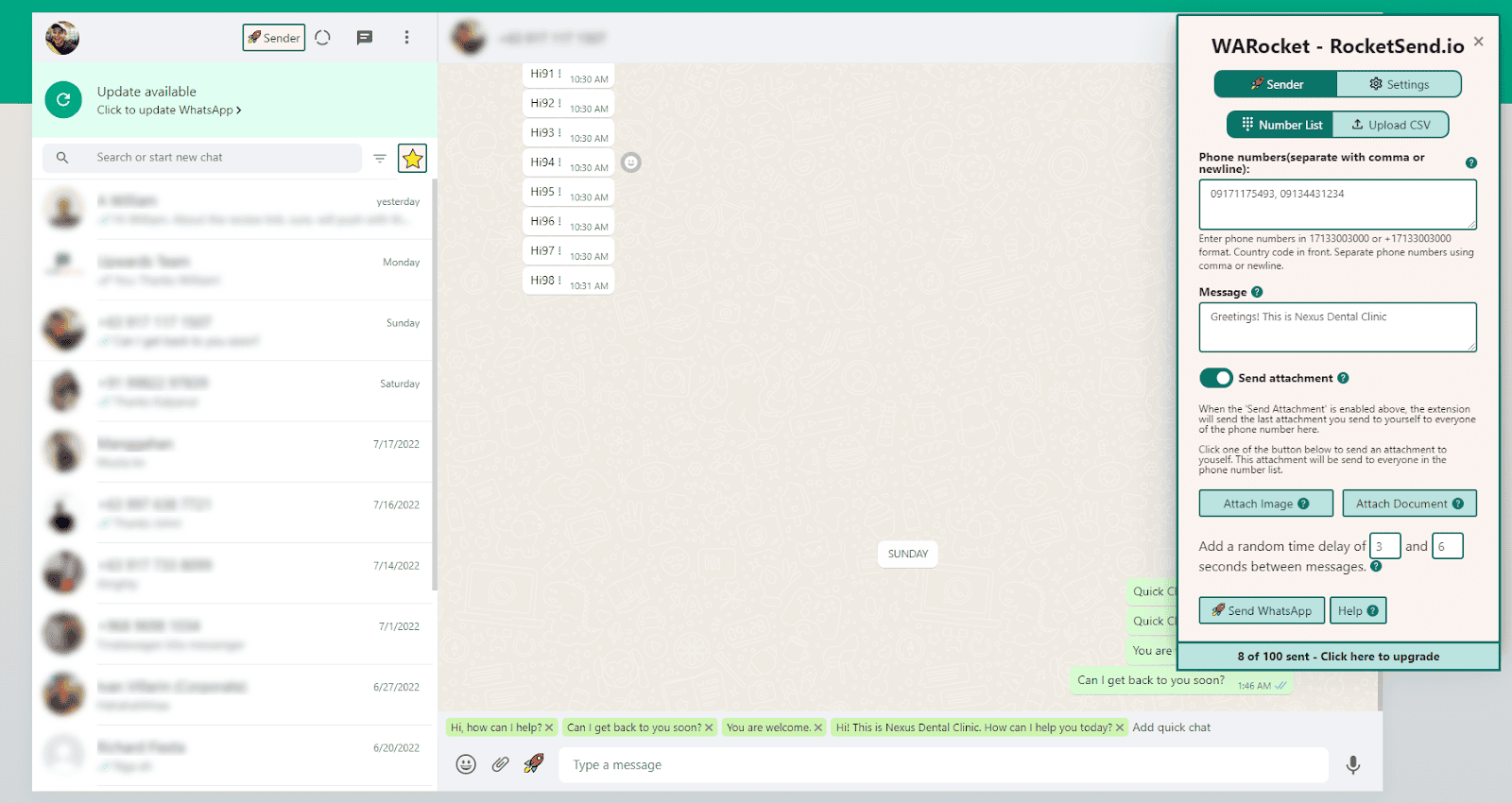
After adding the extension to your Chrome browser, head to your WhatsApp Web. The rocketsend.io pane will appear on the upper right corner of the page.
Sending Customized Messages via Excel Sheet
One of the main features of rocketsend.io is to send customized messages to your customers, without the pain of long processing and complicated steps.
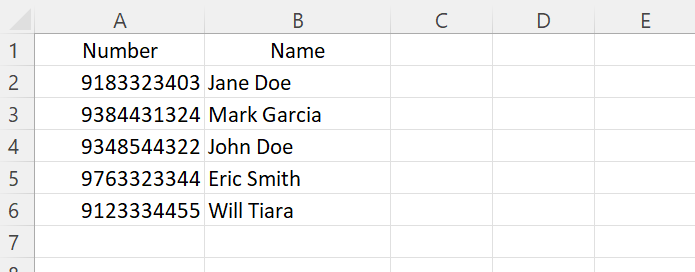
Step 1: To do this, just create a sheet file via Excel Sheet. Create the numbers column and the name of the people. Fill out the details on the sheet, and don’t forget the country code of the number you are intending to send the message to.
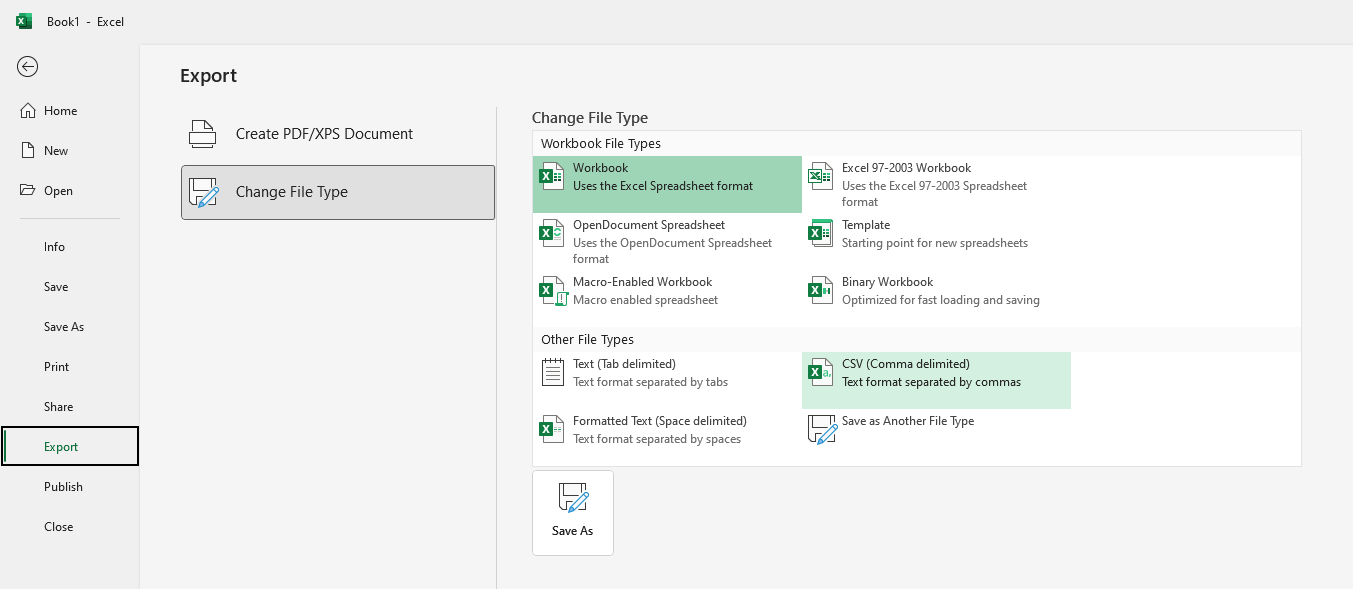
Step 2: Once done, save the file as CSV format.
Step 3: On rocketsend.io pane, click the Upload CSV button, and choose the file you created.
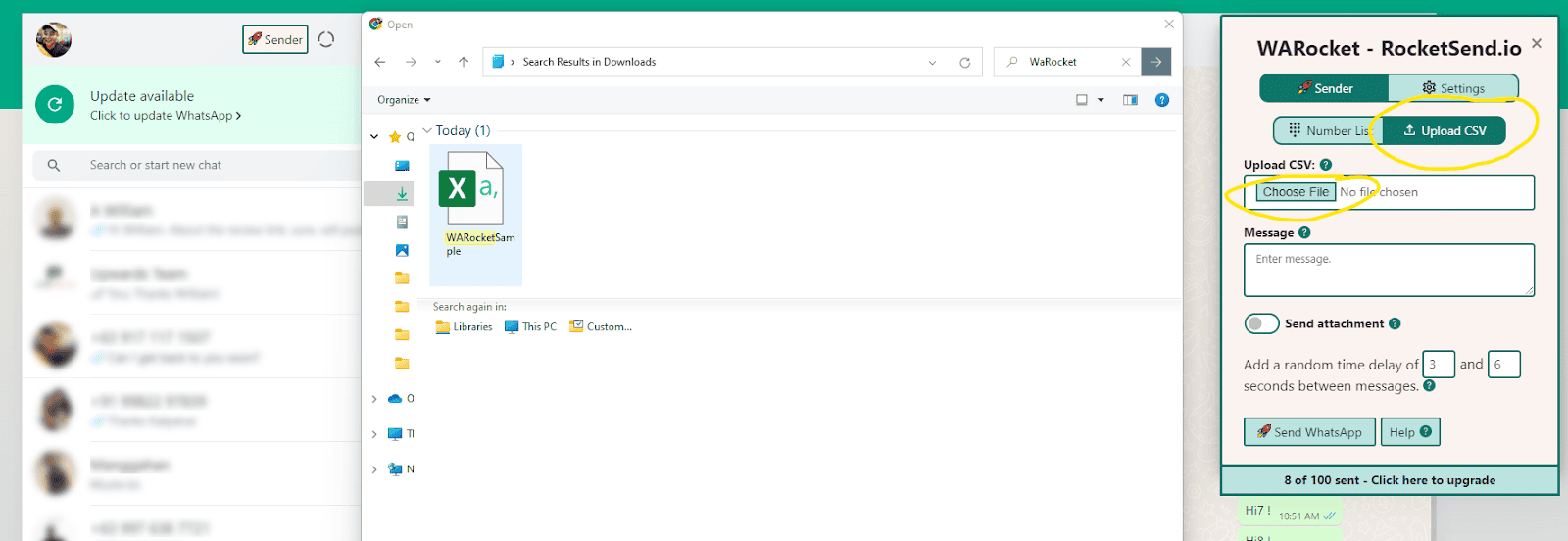
Step 4: Map the phone number to the field on the file you’ve created.
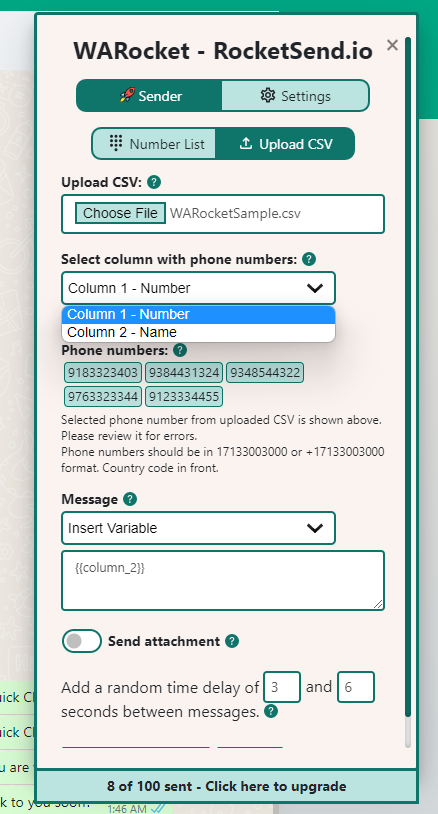
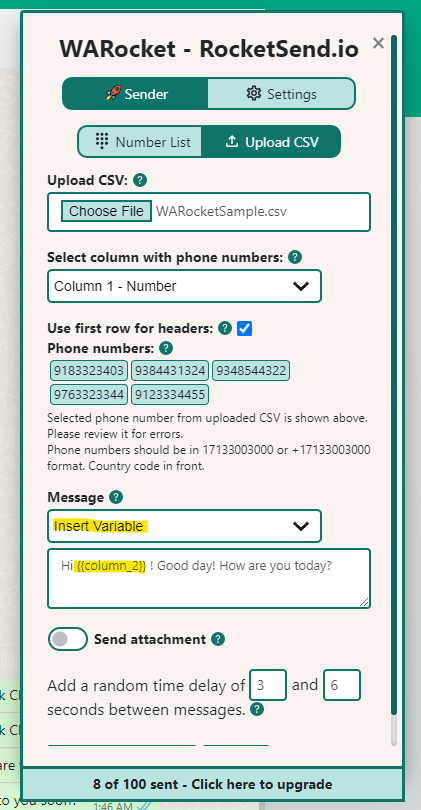
You can also further use the columns as message variables, to make it customized and distinct per customer. You can do this by clicking on the ‘Insert Variable’ dropdown and then select the column you would like to insert. The inserted column is shown in curly braces like {{column_name}}.
Step 5: Once done, click the Send WhatsApp
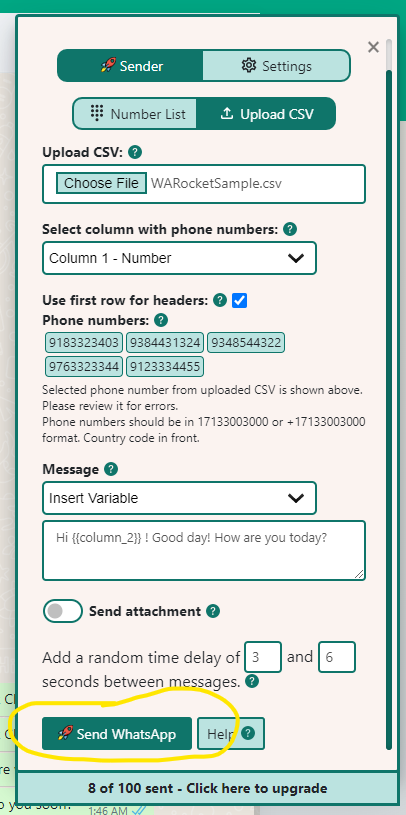
Congratulations! You’ve sent your customized messages directly from Excel Spreadsheet.
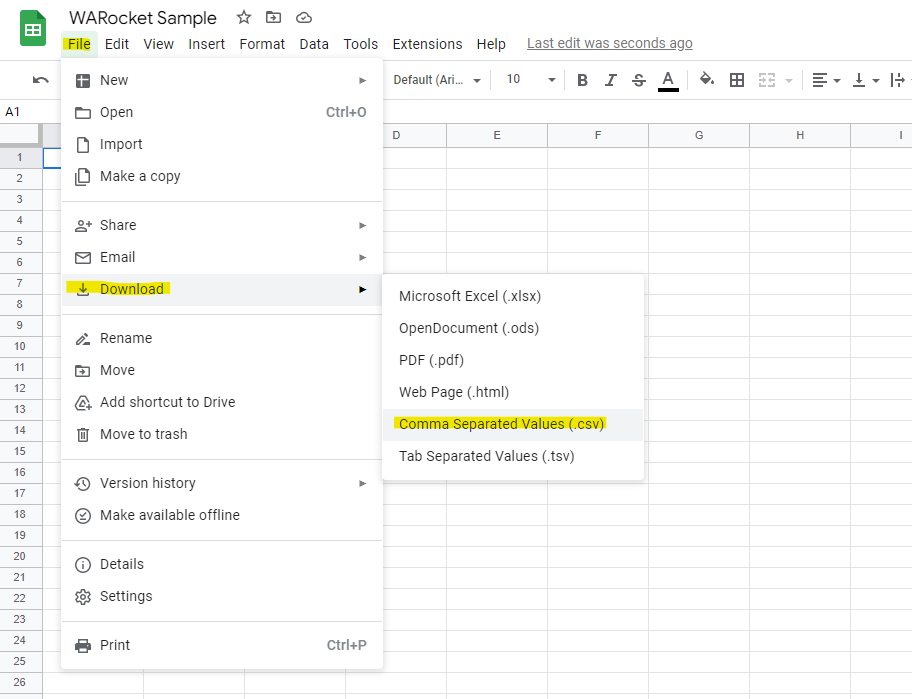
If you don't have the MS Excel installed on your computer, you can also try Google Sheets. Just repeat the steps and download the file as CSV.
Video description
Conclusion
Keeping your customers engaged and up-to-date with your business has never been easier. With rocketsend.io’s rich customer engagement features, you’ll be at ease building stronger relationships with your customers.
Click here if you are interested in learning how to send WhatsApp messages from Google Sheet.